We use HubSpot to track and manage all of our customer interactions. It enables the creation of customer contacts, and then logging of emails/notes associated to that customer.
Contact Management
Given that we have multiple client-facing roles within FlowFuse, it's important to document those that we talk to ensure no crossover in sales and conversations.
Lifecycle Stage
All contacts in HubSpot need to have a defined lifecycle. It is required that all contacts pass through each lifecycle stage at the appropriate time based on their interaction with FlowFuse marketing and sales. Contacts should not skip a stage. It is up to the contact owner to ensure their contacts have the appropriate lifecycle stage set.
| Stage Name | Lifecycle Stage | Owner | Deal Stage | Deal Probability | Requirements for this Stage | Supporting Materials | KPIs |
|---|---|---|---|---|---|---|---|
| Subscriber | Subscriber | Marketing | N/A | 0% |
| N/A |
|
| Lead | Lead | Marketing | N/A | 0% |
| N/A | N/A |
| Marketing Qualified Lead | MQL | Sales | N/A | 0% |
See Lead Activation for inbound vs. outbound definitions. |
| # new MQLs |
| Sales Qualified Lead | SQL | Sales | N/A | 0% |
|
| # New SQLs & # First Meetings Occurred |
| Opportunity | Opportunity | Sales | Opportunity | 10% |
|
| Pipeline Forecast Sheet |
| Value Identified | Opportunity | Sales | Value Identified | 30% |
| TODO: Account Mapping sheet | |
| Value Validated | Opportunity | Sales | Value Validated | 50% | N/A | N/A | Pipeline Forecast Sheet |
| Procurement | Opportunity | Sales | Procurement | 70% | N/A | N/A | Pipeline Forecast Sheet |
| Closed Won | Customer | CSM / Sales | Customer | 100% | N/A | N/A | N/A |
MQL follow-up expectations
MQLs will be engaged by a Sales Representative, according with the appropriate geographic region of the contact (or who is available in the time frame). Sales should reserve time on a daily basis to review new and existing MQLs, reach out to them, and understand the nature of their interest in FlowFuse. The primary goals of this engagement are to clarify context, identify potential opportunities early, and manually update lifecycle stage and lead status so that only genuine opportunities move forward in the pipeline within the first business day since the MQL has landed.
Lifecycle changes
From MQL to SQL: Qualifying Questions
- Does the prospect and company fit the target industry / company size / role?
- Are they working on an initiative related to connecting systems, industrial data, or operational workflows?
- Can they describe a specific problem, use case or goal they’re trying to address?
- Are they open to a meeting to explore their use case in more detail?
Lead Status
For leads who are MQLs or SQLs the Lead status
field is used to mark what the status is. Even though they're beyond being a lead.
This field is maintained by the primary contact owner, likely the account executive.
At this stage we're using the default set of status's in HubSpot:
| Lead status | When to use |
|---|---|
| New | The contact in question has had only marketing contact (E-mails, etc). |
| Open | In the stage where a contact is assigned to a Account exec, but no official connection has be made. Usually contacts are only in this stage for a short while. |
| In Progress | After contact has been made, this status captures the nurturing process toward an opportunity. |
| Open Deal | When a deal is on the board, and the opportunity is real, this is the status! |
| Unqualified | Either this contact specifically cannot lead the sales process, or the account itself has been found unqualified. |
| Unresponsive | We have not received a reply in 2 weeks, they are ghosting us. |
| Bad timing | FlowFuse was, for whatever reason, not a great fit right now. However, it's potentially a good fit later. |
Outbound
Activation Outbound is a custom property that's set to Yes when the first meeting with the contact came through outbound
drip campaigns or other outbound lead-gen actions. This property will be set to Yes when the contact was in HubSpot
through other marketing activities too, but wasn't nurtured to the point of a meeting yet.
Deal Management
A HubSpot deal represents a specific revenue opportunity with a customer or prospect: an active buying process with an engaged buyer, a realistic close date, and next steps the deal owner can work. We open a deal for each type of revenue opportunity: new business, expansion (in-term or at renewal), pilot-contingent expansion, and renewal. The rules for each type are below. Once a deal is open, quoting and closing it follows Engagements & Pricing.
Deal Amount Fields
Every deal has three amount fields, computed the same way for every deal type — new business, expansion, and renewal alike — including expansion deals opened at pilot kickoff:
- ARR = Incremental ARR: for a New Business deal, the full ARR of the new contract; for an Expansion or Renewal deal, only the increase in ARR relative to the prior contract. A flat renewal with no growth has $0 here — that's expected, not an error.
- ACV = ARR (above) plus Non-Recurring Revenue (e.g. professional services, onboarding fees) — the deal's one-year value.
- Amount = the same value as ACV. Amount is always this single-year figure; it is never multiplied out over a multi-year term — multi-year terms are captured separately via Contract Term and Payment Terms, which drive multi-year commission tiering, not the Amount field.
Estimate pessimistically: enter the value you're confident you can close, not the best case. Through the sales process these fields are only meant to move up, as scope firms up or grows; they should never need to be revised downward to stay accurate. If a number needs to come down, that's a sign the deal itself has changed and its stage or close date likely need review too, not just the amount.
Update all three whenever the scope of the deal changes or estimates firm up.
New Business Deals
A New Business deal represents first revenue with a new customer.
- Create the deal in the Sales pipeline once the MQL-to-SQL qualifying questions have been answered. A call isn't required to open the deal, but the answers are — do not open a deal on the strength of a booked meeting alone. Once created, it enters at 1-Discovery.
- The deal owner is the AE for the region.
- Complete all three amount fields (Amount, ACV, ARR) for the contract being proposed.
- One deal per buying process. If the prospect goes quiet, close the deal as lost and reopen a new one when they re-engage. Do not let deals idle with stale close dates.
Expansion Deals
An Expansion deal represents incremental ARR from an existing customer. The AE owns expansion deals, and they are opened in the Sales pipeline — except an expansion bundled into a renewal for under $10k ARR, which the CSM owns directly (see below).
- All three amount fields (Amount, ACV, ARR) carry the incremental value of the expansion only, never the customer's total contract or total ARR.
- In-term expansion (mid-contract): create the deal when the customer confirms an active interest in additional capacity, users, or products: an engaged buyer and a realistic close date, not a hope.
- Expansion at renewal: create a separate expansion deal carrying only the ARR delta, with its close date aligned to the renewal date. This keeps renewal and expansion performance separately measurable.
- Under $10k ARR: fold the increase directly into the renewal deal's own Incremental ARR instead — the CSM owns it, and no separate AE-owned deal is opened in the Sales pipeline. This matches how Customer Success commission already credits "Expansion (Renewal)" to the CSM.
- **0).
- Expansion contingent on a pilot: create the deal at pilot kickoff, following Pilot and Expansion Deals.
Pilot and Expansion Deals
Future revenue that has no active buying process behind it, such as an expansion that depends on the outcome of a pilot, is recorded as data on the account until the pilot begins. This keeps pipeline coverage, forecasts, and stage-conversion metrics honest.
A common example: a prospect purchases FlowFuse to run a production pilot at a single plant, with a decision on a wider rollout expected after roughly six months. The initial purchase is the land deal; the rollout is the expansion.
While the land deal is open
- Keep the land deal as the only open deal on the account. Do not create the expansion deal yet.
- Record the expected expansion ARR and its trigger (for example, "pilot completion, expected H1 next year") on the deal or company record so the potential is visible without inflating the forecast.
- Negotiate the pilot success criteria and the rollout decision process into the land deal before it closes. By pilot kickoff, the pilot must have a confirmed end date and the customer must have agreed how the rollout decision will be made: success review scheduled, executive sponsor engaged, budget conversation started.
At land close / pilot kickoff
- Create the expansion deal at 3-Solution, close date = expected pilot end plus decision buffer.
- Update the close date as soon as the customer confirms the actual pilot end date.
During the pilot
- Review progress against the success criteria at regular check-ins and document proof points for the rollout business case.
- Multithread beyond the pilot team; the expansion decision needs an executive sponsor.
90 days from pilot end date
- Confirm the pilot end date and the success review, then move the expansion deal into 4-Validate and work it as active pipeline.
- Attach a mutual action plan covering the success review, business case, budget, and procurement steps.
Renewal Deals
A Renewal deal represents the continuation of a customer's existing ARR.
- Create the renewal deal in the Renewal pipeline immediately when the preceding deal closes won. Set the close date to the renewal date.
- Complete the amount fields per Deal Amount Fields: ARR here is the Incremental ARR only — the increase relative to the prior contract, not the full continuing base. A flat renewal has $0 ARR/Amount; that's expected, not an error. The customer's continuing base ARR lives on the account/subscription record, not on this deal.
- Customer Success owns renewal deals.
- Growth bundled into the renewal follows Expansion Deals: under 10k ARR or more, it's a separate AE-owned expansion deal, and this deal's Incremental ARR reflects only the renewal itself. A contraction or downgrade is reflected as a negative Incremental ARR on this deal.
- Begin actively working the renewal no later than 90 days before the renewal date: confirm the champion, surface risks, and start procurement early.
Tracking Deals in GitHub
Each deal is mirrored daily into a representative GitHub issue in the FlowFuse/product repository, with the deal owner assigned as the issue assignee. The deal issue is the discussion hub and collection point for everything tied to that deal: feature requests blocking or supporting it, customer-specific implementation discussions, and cross-references to the public Sales Request or Customer Request issues filed elsewhere in FlowFuse repositories. Because FlowFuse/product is private, this view is internal-only and lets the team see which feature requests pertain to which deal. Sales and Product share responsibility for maintaining this link.
Deal Properties
| Property | Description |
|---|---|
github_issue | URL of the deal's representative GitHub issue in FlowFuse/product. Auto-populated and synced daily; do not edit manually. The linked issue is where deal-tied feature requests, blockers, and customer asks are discussed and cross-referenced. |
Importing Contacts Into HubSpot
If you import contacts into HubSpot, it is important that the First Name and Last Name are populated correctly. Currently the FlowFuse Cloud database stores first and last name in a single field called Name. If you import this field into HubSpot the default is set to populate the Last Name field. The First Name field will not be populated so any email personalization with First Name will not be effective.
The ideal process for importing FlowFuse Cloud contacts is that you first split the Name field into a First Name and Last Name. Google Sheets has the ability to split a column of text into two columns based on the delimiter of a space. Once that is completed then you can import the list into HubSpot.
Data Enrichment Deletion Requests
HubSpot sends Super Admins an email with the subject "Action needed: Enriched data delete requests pending" when a contact has requested deletion of their data from HubSpot's enrichment dataset. FlowFuse complies with these requests within 7 days by manually deleting the enriched data for the contact in HubSpot.
When you receive this email, open HubSpot and action each pending request by permanently deleting the enriched data for the listed contacts. After deletion, HubSpot records a timeline event on the contact confirming the action was completed.
See HubSpot's documentation on opt-out notices for the enrichment dataset for step-by-step instructions.
Recommended Apps
Extension applications for HubSpot that can be beneficial if you're interacting with customers:
- G-Mail Extension (link) - Automatically creates contacts when you e-mail them for the first time, and logs e-mail activity against that contact in HubSpot.
- Enhance your meeting invites by following these steps:
- After installing the extension, click on
Meetingsin the toolbar that appears in Gmail. - Pick at least three of your available timeslots to be added as options to your e-mail message.
- HubSpot will automatically generate three buttons in the email, each corresponding to one of the proposed times. Take into consideration that the displayed time will correspond with the host's timezone.
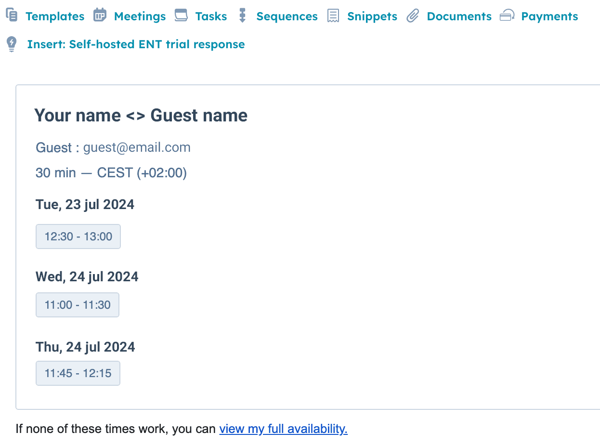
- If none of the options work for the recipient, an additional link to your calendar will also be included.
- After installing the extension, click on
- Enhance your meeting invites by following these steps: